After a BIOS update my computer booted straight to Windows. Using diskpart, bcdedit, and bootice the issue was resolved.
Solution summary
- Use diskpart to assign a drive letter to the boot partition
- Use task manager run cmd + browse to locate efi file
- Use bcdedit to set the windows boot manager path to the systemd efi
- Use bootice to verify fix
Specific details
- Motherboard is a msi x370 sli plus
- BIOS went from 3.1 (2017-03-20) to 7A33v3H (2019-01-24)
- Operating systems are Windows 10 and Nixos 19.09 stable
- Dual boot used UEFI systemd-boot installed with nixos
Detailed process
Updating the BIOS
Following vendor instructions Download the zip from the motherboards driver page, extract to a USB drive, reboot
Identify issue
Normally my system boots to a GRUB-like prompt to select an operating system, this time it booted straight to windows. Since I was unable to access linux I used windows for the repair.
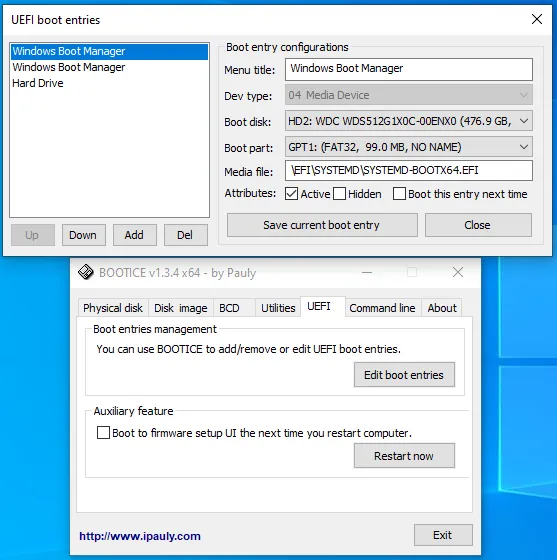
Locate diagnostic information with BootICE
I knew the system used UEFI and it was a boot issue, various searching revealed a freeware tool called bootice which provides tools to manipulate windows boot information.
Using UEFI > Edit Boot Entries I saw that windows had been set as the only boot option.
Mounting EFI partition
The boot partition includes efi files that describe how to boot the computer. In order to determine the new value to set I used these instructions to mount and browse the efi partition. The following is specific to my case, you’ll have to do some exploration to determine the exact disk and partition to use.
diskpart
list disk
select disk 2
list partition
select partition 2
assign
You don’t have permission to access this folder
I was unable to access the newly assigned drive (K: in my case) from explorer. Either start explorer.exe with administrator privileges (start > type explorer > right click run as administrator)
Or follow this tip from patkim:
Interestingly I find that the mounted EFI drive is accessible from the ‘Browse’ button from Task Manager -> ‘Run New Task’
There were many efi files, I searched all of the names to figure out which was most likely the one I wanted, which ended up being \efi\systemd\systemd-bootx64.efi
Editing UEFI order
Bootice was used to edit the order to something approximating correct and the system rebooted it showed the expected boot screen!
TODO: Photograph the boot screen
Booting to proper EFI permanently
Using bootice it was possible to set the proper efi once, but once Windows loaded it would reset the efi values.
This can be fixed with third party tools but microsoft includes something called bcdedit which worked in my case.
The specific command was
bcdedit /set {bootmgr} path \efi\systemd\systemd-bootx64.efi
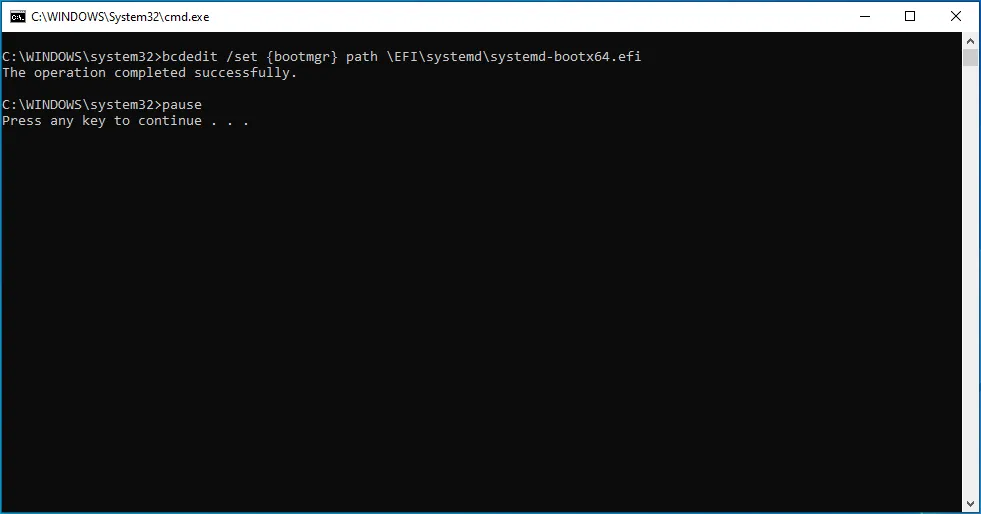
After this the system would continue to show the systemd prompt even after booting into windows. First crises averted, though the next post shows the struggles of reconfiguring X